ad880 on Your Phone — Browser Access, Account in Hand
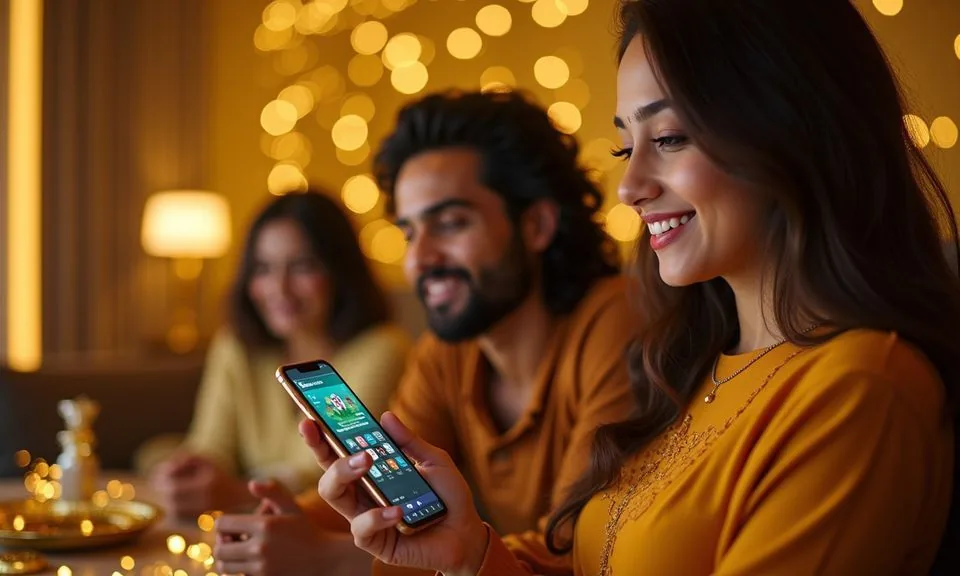
The ad880 mobile experience runs through your phone browser — no app-store search needed. Open the site, sign in, and your account wallet, game lobby and payment history are right there on screen.
When you open ad880 from a phone browser, the page layout adjusts to your screen width so navigation controls stay within thumb reach. The account section, game discovery rows and help pages all load in the same browser session — there is no separate download required to access them.
MOBILE PAGE BEHAVIOUR
Mobile Access Features Worth Knowing
These four points describe what the ad880 mobile browser session actually does — based on how the site renders on a phone screen — not claims about a native app. Each point reflects the visible page behaviour you can check yourself once you open the site on your device.
Responsive Navigation
The site menu collapses into a thumb-friendly layout on smaller screens. Game categories, account routes and support links stay reachable from a single tap rather than buried under multiple levels of navigation. No pinch-zoom needed to hit the right button.
Account Wallet View
Your wallet balance and recent transaction lines are visible from the account section on mobile. Deposits recorded via Nagad, Upay or Bank Transfer appear as dated entries in the history — the same record you see on desktop, just on a smaller screen.
Game Lobby on Mobile
Slots, live casino and sports markets load inside the browser tab. Titles from studios including JDB, CQ9 and Spadegaming appear in the discovery rows. Tap a title to open it; the game canvas scales to your screen without a separate app container.
Help Pages in Session
The support and FAQ sections are accessible within the same browser session — no app switch required. If you hit an account question mid-session on your phone, you can open the help page, read the guidance and return to your place without losing the login state.
THREE ACCESS STEPS
Mobile Access in 3 Steps
Getting into your ad880 account from a phone takes three straightforward steps in the browser. No file download, no store search — just your phone, a browser and your account credentials. The steps below reflect the browser route that is currently confirmed for mobile.
Open the Current Site
Type ad880 into your phone browser address bar or tap a saved bookmark. Confirm the domain matches before entering any credentials — the correct domain is published in the site footer and help section.
Check Browser Compatibility
The site renders on current versions of Chrome, Firefox and Safari for Android and iOS. If the layout looks broken or a game fails to load, check the device guidance page linked in the help section for the latest browser recommendations.
Sign In to Your Account
Enter your registered email and password on the login screen. Once authenticated, your wallet balance, transaction history and the full game lobby are accessible from the mobile layout. Use the account menu to locate payment options and support links.
Verify Your Payment Route
From the account section, open the payment page to confirm which methods are currently active — Nagad, Upay and Bank Transfer are the verified routes. Follow the fields and limits shown on-screen; do not rely on figures from outside the account page.
DEVICE COMPATIBILITY CHECK
Browser and Device Compatibility at a Glance
Compatibility depends on your browser version and screen size, not on a specific operating system build. The points below describe what to check before your first mobile session.
Browser Version
Use a current release of Chrome, Firefox or Safari. Older browser versions may not render the game canvas or account forms correctly. Check your browser's About page to confirm you are on a recent build before logging in.
Screen Layout
The responsive layout is designed for screens from typical smartphone width upward. Tablets and larger phones will show an expanded layout. The menu, wallet view and game rows all reflow to fit — no separate mobile site or subdomain is required.
Account Requirements
You need an active ad880 account to access the wallet, game lobby and payment history on mobile. Account creation and verification steps are the same regardless of device. Complete any pending verification before your first mobile deposit attempt.
Checking Supported Devices
Open the help or FAQ section on the site to find the published device guidance notice. That page names any known incompatibilities. If your device or browser is not listed, try the session and note any display issues to report via the support channel.
Connection and Session
A stable mobile data or Wi-Fi connection keeps the live casino and game sessions running without interruption. If a session drops, log back in from the same browser — your account state and wallet balance are preserved server-side.
MOBILE HELP ROUTES
Getting Help During a Mobile Session
If something is not working as expected on your phone — a page that will not load, a payment entry that is not going through, or a login issue — the support routes below are accessible from within the browser session.
Live Chat Support
The live chat widget is accessible from the help section of the mobile site. Open the support page, tap the chat option and describe the issue. The chat loads in-browser so you do not need a separate app to reach the support team during a phone session.
Help and FAQ Section
The on-site FAQ covers common mobile access questions — login steps, browser settings, payment entry and account verification. Check this section first; most device and access questions are answered there with the current guidance rather than a generic reply.
Account Recovery Path
If you cannot access your account from mobile, use the published account recovery link on the login screen. Follow the steps shown — they include a verification route tied to your registered details. Do not share credentials with any third-party recovery service.
ACCESS TRUST CHECKS
Four Checks Before Your First Mobile Session
A phone session on ad880 carries the same account security responsibilities as a desktop session — your login credentials, wallet and transaction history are all accessible once you are signed in.
Confirm the Domain
Before entering your email and password, confirm the browser address bar shows ad880 exactly. The correct domain is also listed in the site footer. If the address looks different — extra characters, a different suffix — close the tab and navigate fresh from a saved bookmark.
Review Published Device Guidance
The device guidance page in the help section describes the current browser and screen requirements. Check it once when you first access the site on a new phone. If requirements change, the page reflects those updates before any other source does.
Protect Your Account Credentials
Do not store your ad880 password in a shared notes app or a browser profile that others can access.
Use the Published Recovery Path
If you lose access to your account, use the recovery option on the login page. That route is tied to your registered email or phone number. Do not contact unofficial channels claiming to offer account recovery — the only verified path is the one shown on the login screen.
APP ACCESS QUESTIONS
Mobile App Questions Answered
These questions reflect what people ask when they are trying to access ad880 from a phone for the first time — or returning after a break. Each answer is based on the browser access route currently confirmed on the site.
Is there an ad880 app available to download from the Play Store or App Store?
As of the current site guidance, ad880 operates through a mobile browser rather than a listed app-store build. Open ad880 in your phone browser to access your account, wallet and game lobby. If a native app becomes available, it will be announced directly on the site.
Can I deposit using Nagad or Upay from my phone?
Nagad, Upay and Bank Transfer are the verified payment routes on ad880. From the mobile browser session, open your account, navigate to the payment section and follow the fields and limits shown on-screen. The exact steps and any active conditions are displayed inside your account, not on a separate external page.
Why does the game or lobby page look different on my phone compared to desktop?
The site uses a responsive layout that adjusts to your screen width. On a smaller phone screen, the menu and game rows stack differently to keep them reachable by thumb.
Which browsers work with ad880 on mobile?
Current releases of Chrome, Firefox and Safari are the browsers confirmed in the published device guidance. Older versions may not load the game canvas or account forms correctly. Open your browser's About or Settings page to check you are on a recent build, then refresh the site if you updated.
I was logged in on desktop — do I need to log in again on my phone?
Yes. Each browser session requires its own login. Open ad880 on your phone browser, enter your registered email and password, and your account state — including wallet balance and transaction history — will load. The account itself is shared; only the session credential is separate per device and browser.
What do I do if the mobile site is not loading or the login page is blank?
First, confirm you are on ad880 by checking the browser address bar. Then try a hard refresh or clear the browser cache.
 Sports / Mobile